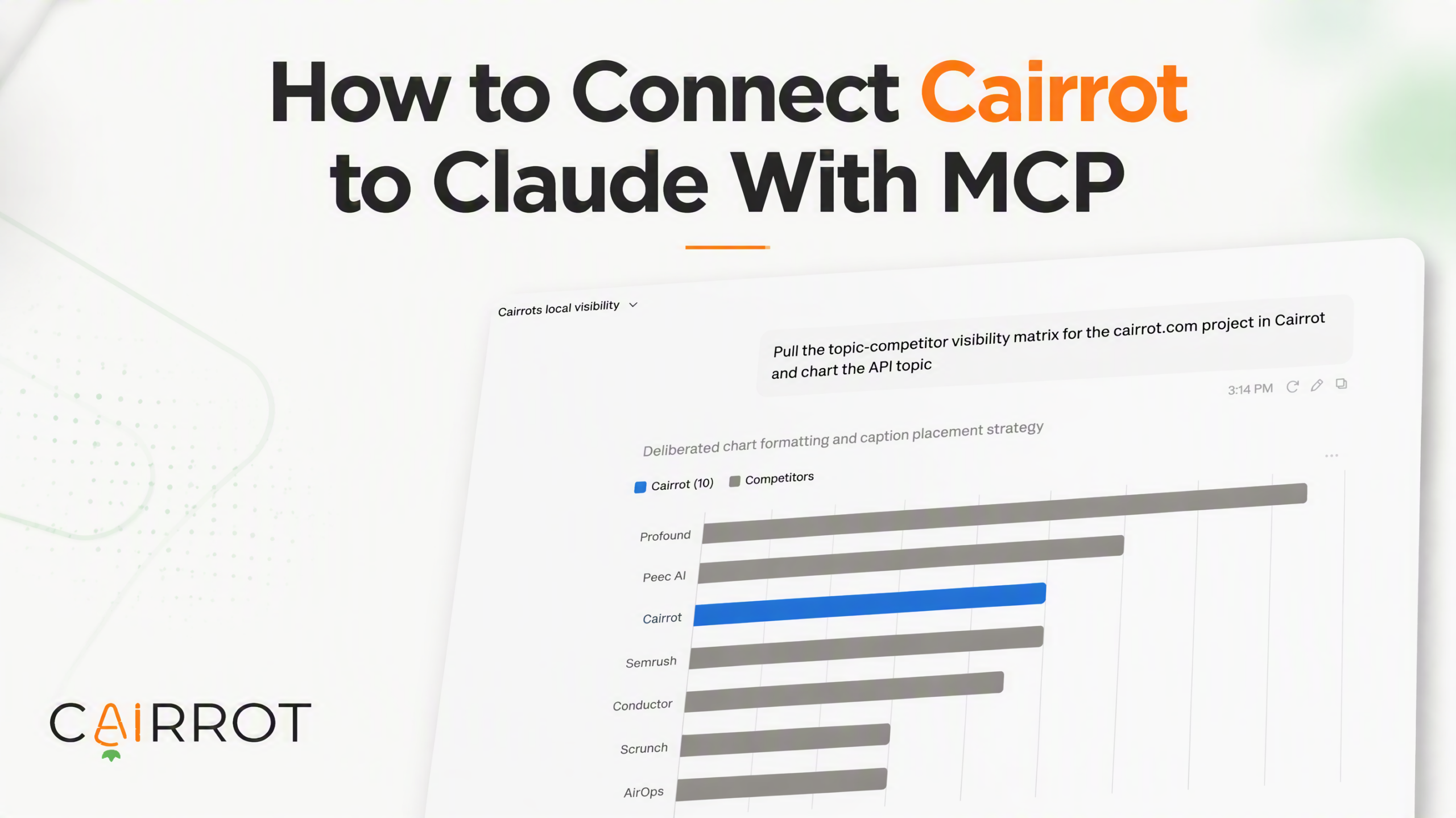
Track your AEO data in plain English: citations, mentions, sentiment, AI crawler activity, and 30+ reports, without leaving Claude.
Cairrot includes a full MCP (Model Context Protocol) server. That means you can connect your Cairrot account directly to Claude, Claude Code, or ChatGPT and pull AI visibility data as you need it.
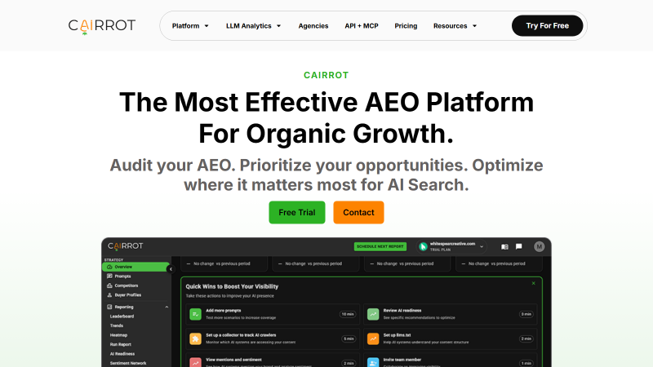
The Cairrot AEO platform.
Once you’re connected, you can ask Claude things like:
• “Show me which pages were cited by AI models this week.”
• “What’s the sentiment breakdown for mentions of our brand?”
• “Generate a competitor comparison report for the last 30 days.”
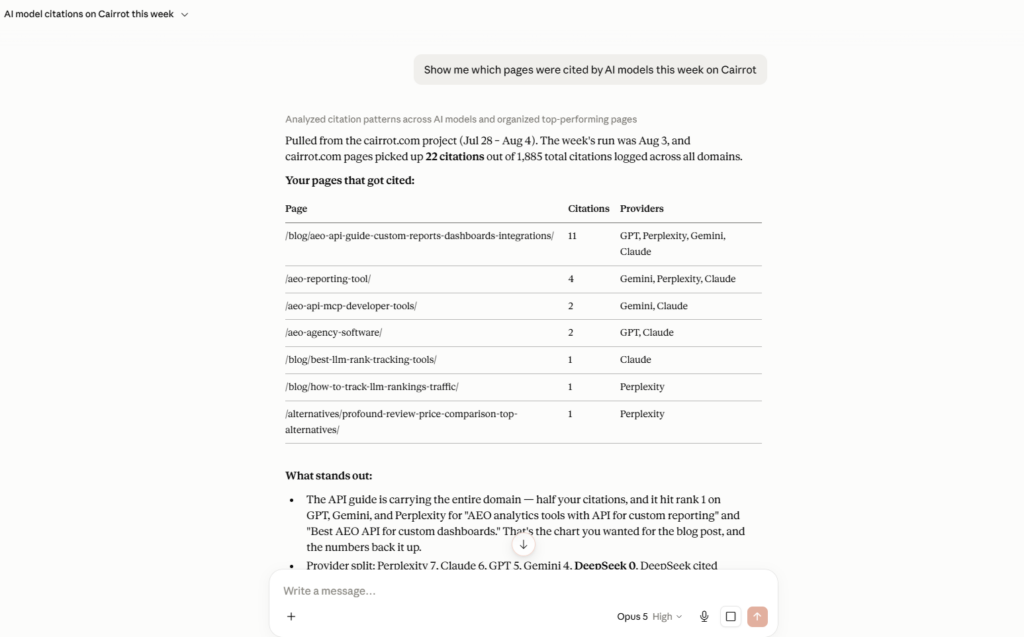
This guide walks through the full setup: from creating your Cairrot API key to running your first query in Claude. It should take about five minutes.
What You’ll Need
Before you start, make sure you have:
• A Cairrot account. Even a free account includes API and MCP access.
• A Claude account. Custom connectors work on claude.ai, the Claude desktop app, and Claude Code.
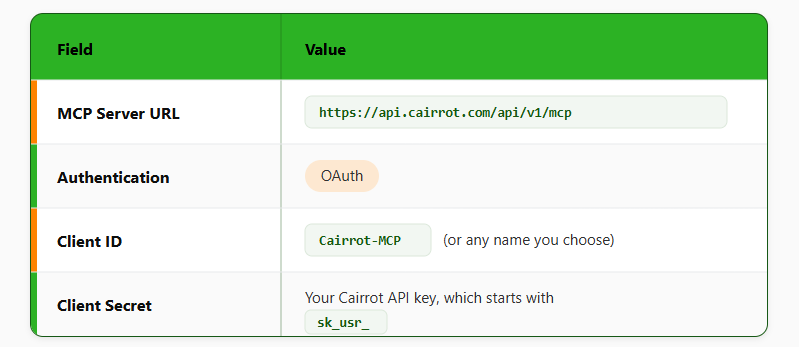
How the connection actually looks
1. Create Your Cairrot API Key
Your API key is the credential Claude uses to authenticate with Cairrot.
Log in to the Cairrot app
Go to app.cairrot.com and log in. You’ll land on your project dashboard
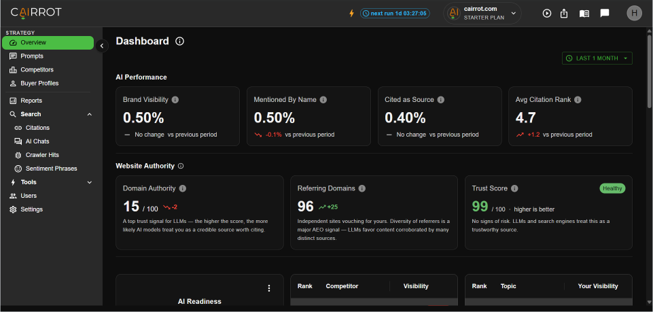
Your Cairrot project dashboard after logging in.
Open Account Settings
Click your avatar in the top-right corner, then select Account Settings.
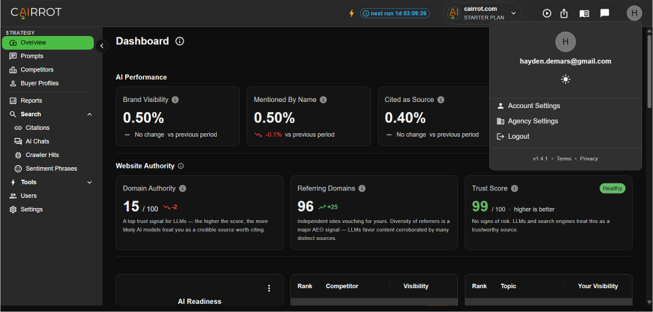
Open the API KEYS tab
Inside Account Settings, click the API KEYS tab.
This is where you can view existing keys, create new ones, and revoke keys you no longer need.
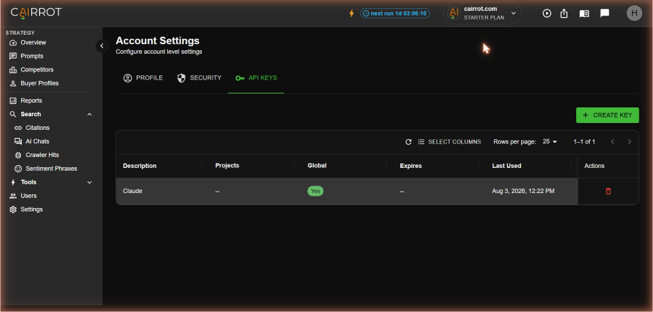
Create your key
Click + CREATE KEY.
Give the key a description you’ll recognize later, something simple like Claude. Then set an expiration date and choose the scope that makes sense for your setup:
- Global key (all projects): Lets Claude query every project in your account. Best for agency owners who need one connection across multiple clients
- Project-scoped key: Lets you choose specific projects. This is the better option when you only need access to a limited set of accounts.
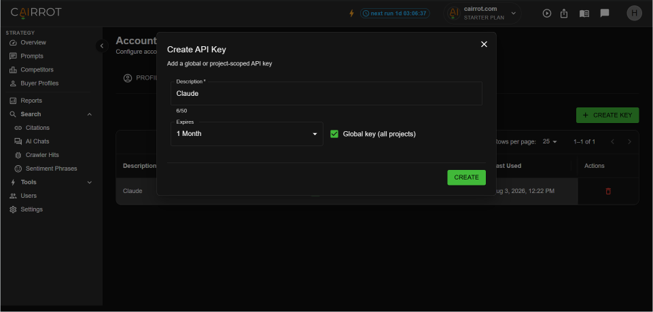
Choose a description, expiration date, and the appropriate access scope.
Click CREATE, then copy the key immediately.
Your key will start with sk_usr_, and Cairrot only shows the full value once. Treat it like a password.
2. Add the Cairrot Connector in Claude
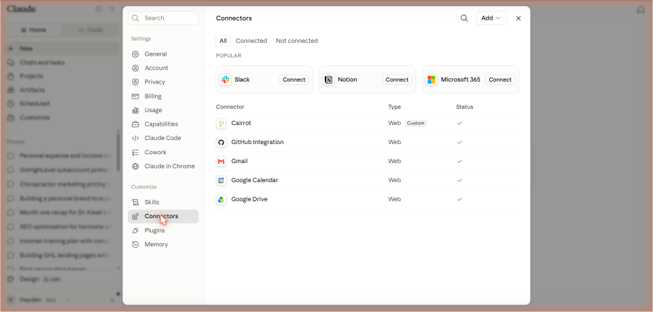
In Claude, go to Settings → Connectors under the Customize section.
The process is the same on claude.ai and in the Claude desktop app. Connectors you add here are also available in Claude Code.
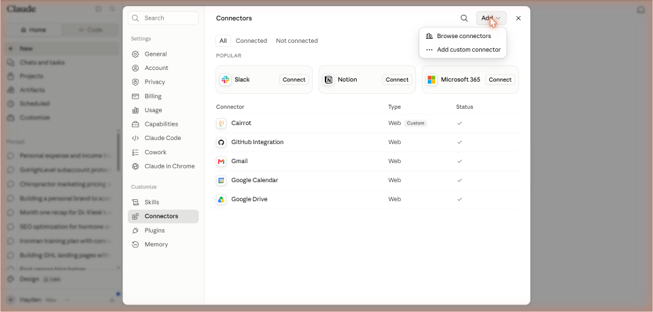
Add a custom connector
Click the Add dropdown in the top-right corner, then choose Add custom connector.
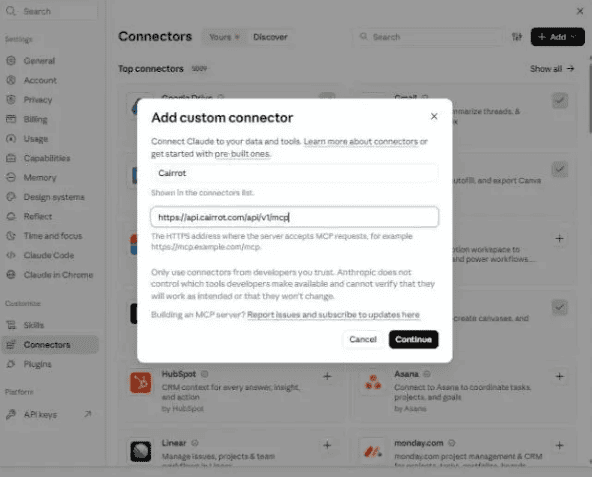
Enter the name and server URL
- Name: Cairrot
- MCP server URL: http
- s://api.airrot.com/api/v1/mcp
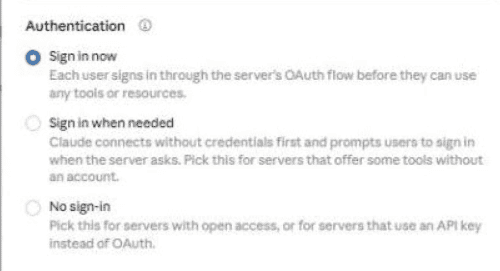
Choose your authentication settings
Choose your authentication settings
Authentication: Sign in now.
Claude usually detects this for you. Leave it selected. Don’t choose “No sign-in,” even though its description mentions API keys. Cairrot passes your API key through OAuth, not in place of it.
OAuth client: Use your own OAuth client.
Claude marks “Register automatically” as Detected, but that option never asks for your API key. Select Use your own OAuth client instead.
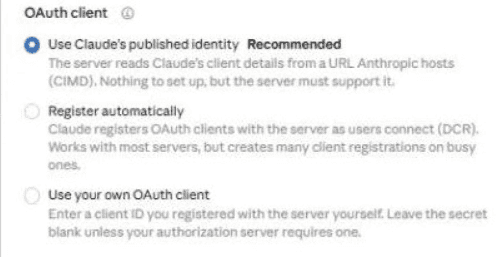
Enter your Client ID and API key
In the connection dialog, expand Advanced settings and enter the following:
- Name: Cairrot
- Remote MCP server URL: https://api.cairrot.com/api/v1/mcp
- Auth Client ID: Cairrot-MCP
- Auth Client Secret: Your sk_usr_ API key from Step 4
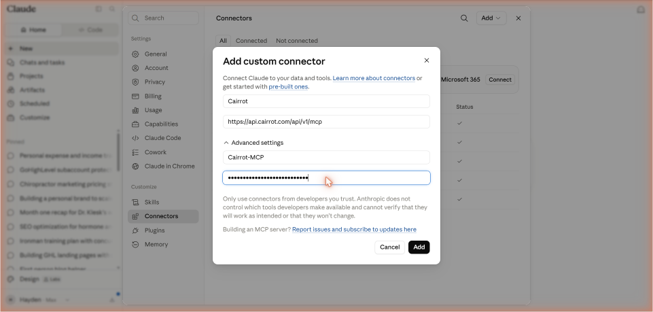
Enter the Cairrot MCP details. Your API key stays masked in the Client Secret field.
Double-check the server URL before moving on. One missing character is enough to make the connection fail.
Click Add
Click Add.
Claude will verify the connection. Once it succeeds, Cairrot appears in your connector list with a checkmark.
Verify the Connection
Open the Cairrot connector from your connector list. You’ll see the 11 tools Claude can now access, including tools for:
• Listing projects
• Searching citations and mentions
• Tracking AI crawler activity
• Generating reports
• Translating plain-English questions into Lucene query syntax
You can also manage per-tool permissions from this screen.
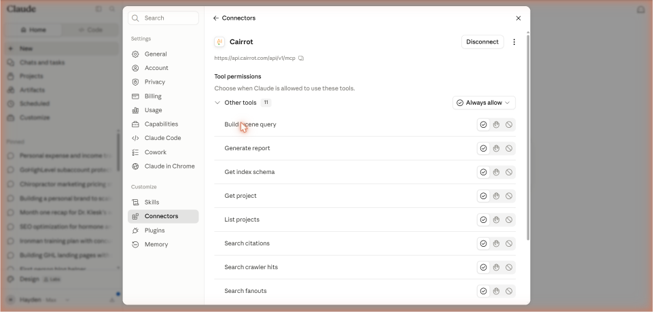
Now start a new Claude chat and ask:
“List my Cairrot projects.”
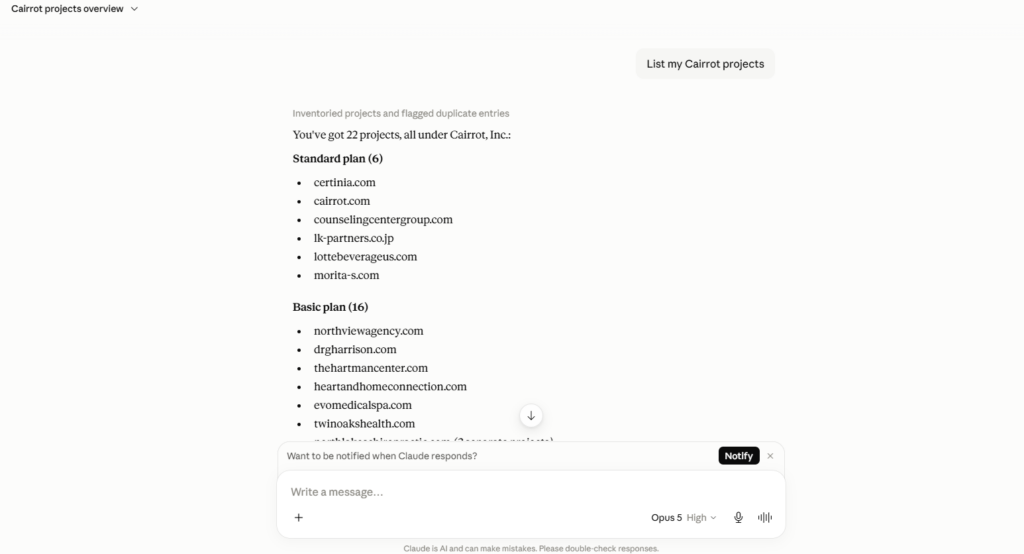
If Claude returns your project list, you’re connected.
Try one of these next:
• “Show me all citations from this week.”
• “What’s the sentiment for mentions of our brand?”
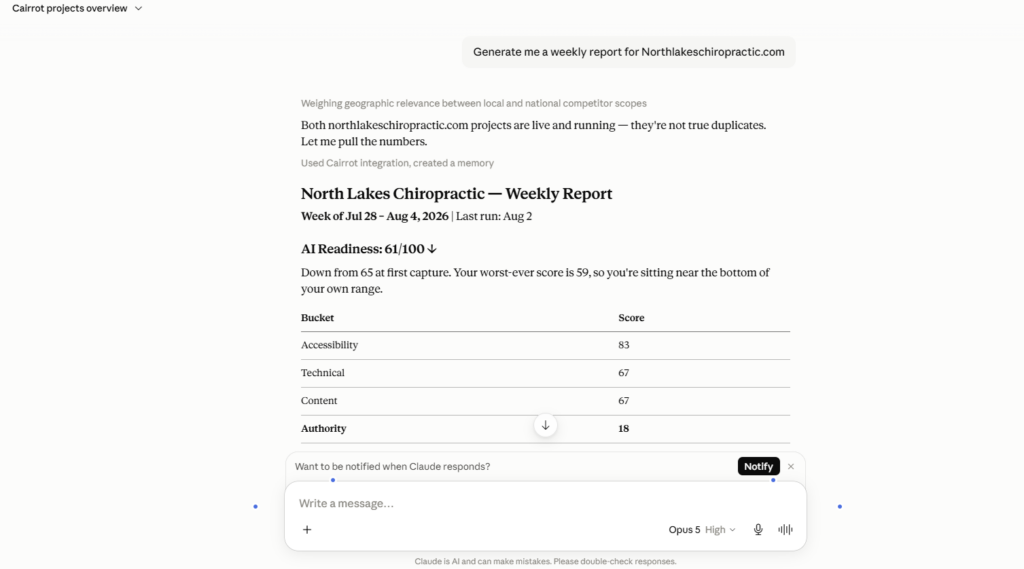
• “Generate a weekly digest report.”
• “Which AI crawlers visited our site recently?”
• “Compare our mentions to competitors.”
Troubleshooting
“Authentication failed”
Make sure the API key was pasted in full, is still active, and has access to the projects you’re trying to query.
If that all looks right, create a fresh key and try connecting again.
“No response from server”
Confirm that the MCP server URL is exactly:
https://api.cairrot.com/api/v1/mcp
Then disconnect the connector and reconnect it.
The tools appear, but queries fail
Your API key probably does not have access to the project you’re asking about.
Go back to the API KEYS tab and check the key’s scope.
Security Best Practices
A few simple rules here:
- Use a project-scoped key instead of a global key whenever possible.
- Rotate keys periodically, especially on shared accounts.
- Revoke a key immediately if you think it may be compromised.
- Claude masks your key after you enter it, but you should never paste the key directly into a chat.
You’re Connected
Cairrot’s MCP server is included with API access on every plan. Once the connector is live, you can pull the AEO data you actually need, without bouncing between dashboards or exporting another CSV you’ll never open again.
For the full tool reference, see Cairrot’s developer docs. For plan details, see Cairrot pricing.
Cairrot to Claude FAQ
Is MCP access included in every Cairrot plan?
Yep, every paid plan. Same API access Cairrot gives away free, so there’s no MCP tier or add-on to buy.
Can I use one MCP connection for multiple client websites?
Yes. The connection authenticates you, not a single site, so one setup covers all your websites.
Does the Cairrot MCP only work with Claude?
No. It’s a standard remote MCP server, so you can connect to ChatGPT, Cursor, Claude Code, n8n, and more.
Can I track brand sentiment across multiple LLMs, and AI traffic too?
Both. Sentiment covers whichever LLMs your plan tracks, and you can pull the actual phrases models use about you and your competitors.